
Google Indexing
Tell Google about new jobs the moment they go live
JobRelay tells Google straight away when a job is added, updated or closed on your WordPress website. New jobs get in front of candidates sooner, and closed jobs leave Google’s job search faster.
Included with JobRelay

Your WordPress site
Google Indexing API
- Google is told within minutes, not days
- Closed jobs are removed from Google too
- Runs on your own website and Google account
The problem
Google can take days to find a new job
Google finds new pages by crawling your website when it gets round to it. For a job that might only be open for a week or two, waiting days for Google to notice it means fewer candidates see it while it matters.
- New jobs sit unseen until Google next crawls your site
- Salary or location changes take just as long to show
- Closed jobs stay in Google and send candidates to roles that have gone
- Submitting each job by hand in Search Console isn’t realistic
- Generic indexing plugins don’t know when a job has closed or been filled
How it works
From your provider to Google in minutes
- Post, update or close a job in your provider as usual. JobRelay sends the change to your website.
- JobRelay adds the job to a short queue on your website.
- Within minutes, JobRelay tells Google the job has been updated, or that it has gone.
- Google visits the job page soon after, so the change shows in its job search much sooner.
Fully automatic
Google is told about every change that matters
Once it’s on, there’s nothing for consultants to do. JobRelay works out what Google needs to know each time a job changes, and only tells Google when it’s worth it.
- New jobs, as soon as they’re live with Google for Jobs markup
- Updated jobs, when the details Google shows have changed
- Closed, expired, filled and deleted jobs, so Google drops them
- Each job only sent once for each change, to save your daily allowance
- Failed sends tried again automatically
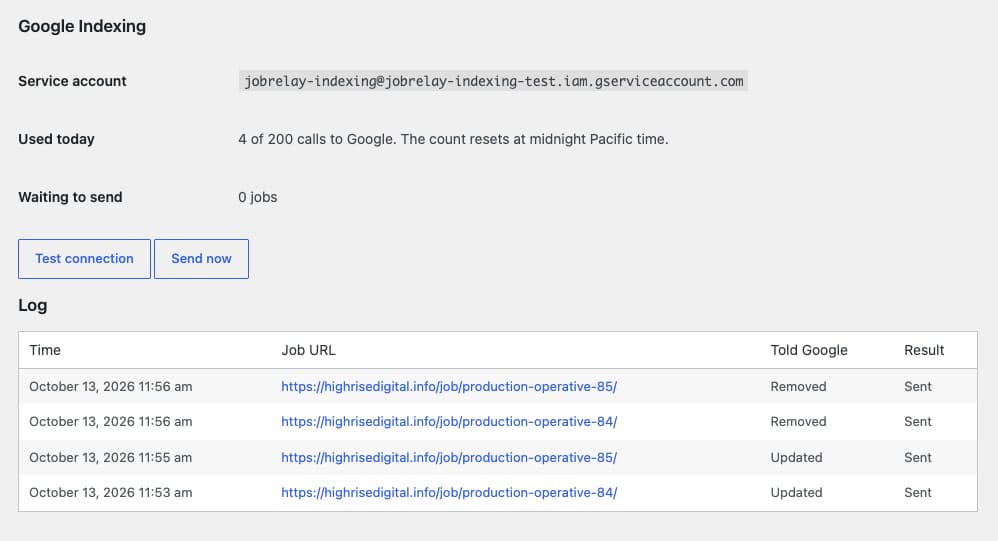
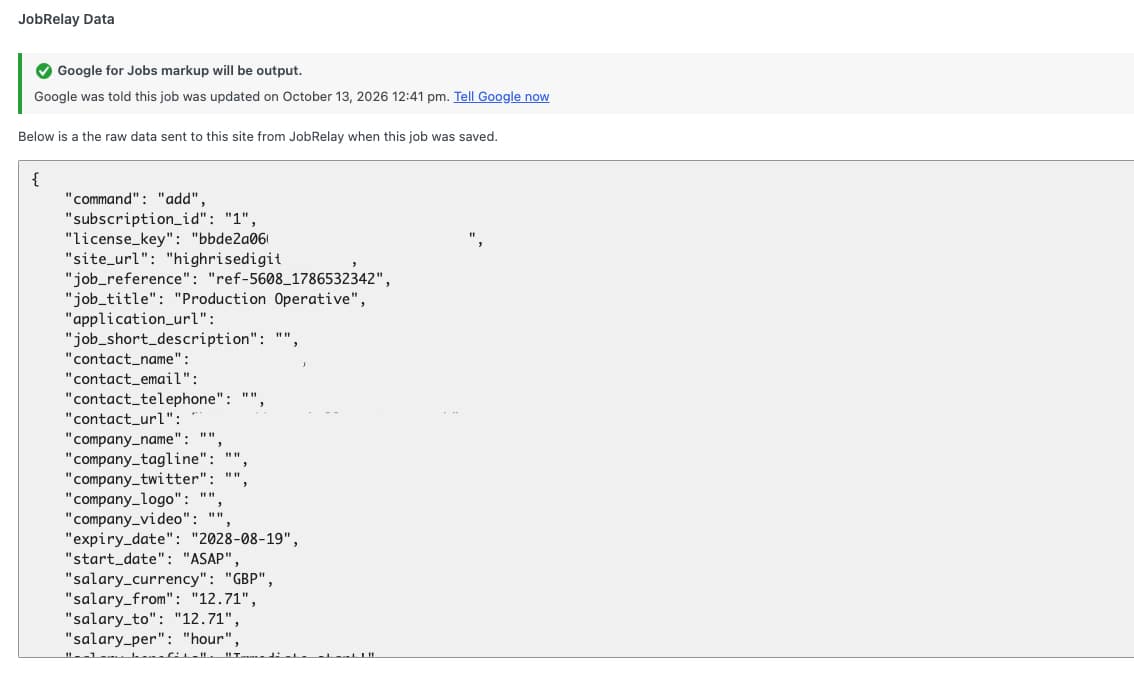
See what Google was told
Every send logged, on every job
You can see exactly what JobRelay has told Google and when, without opening Google Cloud or Search Console.
- Jobs list: hover over a job’s Google for Jobs icon to see when Google was last told
- Edit job screen: the same line, with a Tell Google now link
- Settings page: calls used today, jobs waiting, and a log of the last 100 sends
- Site Health: a warning if the connection to Google stops working
Benefits
What Google Indexing does for your agency
New jobs seen sooner
Google hears about a new job within minutes, so it can show in Google’s job search while the role is fresh.
Closed jobs leave faster
Google is told when a job closes, so candidates aren’t sent to roles you’ve already filled.
No extra work for consultants
Post in your provider as usual. JobRelay tells Google about every change on its own.
Your site, your Google account
It runs on your WordPress website using your own Google Cloud project. Nothing goes through anyone else.
Safe on staging sites
If your site is copied to a staging address, JobRelay notices and only logs what it would have sent.
Free to use
It’s part of the JobRelay Connector plugin, and Google doesn’t charge for the Indexing API.
Setup
How to turn on Google Indexing
It’s part of the JobRelay Connector plugin from version 1.9 and works alongside Google for Jobs markup. If you’d rather not do it yourself, we can set it up for you.
- Update the JobRelay Connector plugin to version 1.9 or later, and tick Output Google for Jobs markup.
- Verify your website in Google Search Console.
- Create a free Google Cloud project and turn on the Web Search Indexing API.
- Create a service account, download its key and add it as an Owner in Search Console.
- Paste the key into Settings > JobRelay Settings, set Google Indexing to On and click Test connection.
Setup takes about
15 minutes
in Google Search Console, Google Cloud and your JobRelay settings. Our guide walks you through each screen.
- No developer or billing account needed
- Test connection button to check it’s working
Simple plans. Unlimited jobs.
Flexibility
Monthly
£49 / month
- Unlimited jobs
- Pay month to month
Best value
Save £169 a year
Annually
£419 / year
- Unlimited jobs
- Works out at £35 / month
Need licenses for several sites? Contact us about bulk pricing.
Google Indexing FAQs
It’s a way of telling Google directly that a page has been added, changed or removed, using Google’s Indexing API. Google only allows it for job pages, which is why it suits recruitment websites so well.
No. Google for Jobs markup is what makes your jobs eligible for Google’s job search. Google Indexing makes Google notice new, changed and closed jobs much sooner.
No. It’s part of the JobRelay Connector plugin, and Google doesn’t charge for the Indexing API or need a billing account.
Google only allows the Indexing API for pages with job posting markup. So JobRelay only tells Google about jobs that have it.
Google allows 200 a day for each Google Cloud project, which is plenty for most agencies. If you reach it, JobRelay waits and sends the rest the next day. You can ask Google for a higher limit if you need one.
Yes. We can complete the setup for you, using JobRelay’s Google Search Console and Google Cloud accounts. Get in touch and we’ll take you through it.
JobRelay remembers the website address it was turned on for. On any other address, such as a staging site, it only logs what it would have sent, so Google is never told about staging pages.
Yes. Set Google Indexing to Log only and JobRelay records what it would have sent, without contacting Google. Switch to On when you’re happy.
No. Jobs are sent when they’re next added, updated or closed. You can send any job straight away with the Tell Google now link on its edit screen.